 Image Studio
Log in to unlock more benefits


Text Sharpening
Improve text edges, table lines, and chart details with AI.
Drag or paste an image file here, or click the button above
Text and Charts mode is ideal for chat screenshots, scans, and table images, making blurry text clearer.
Overview
Text Sharpening
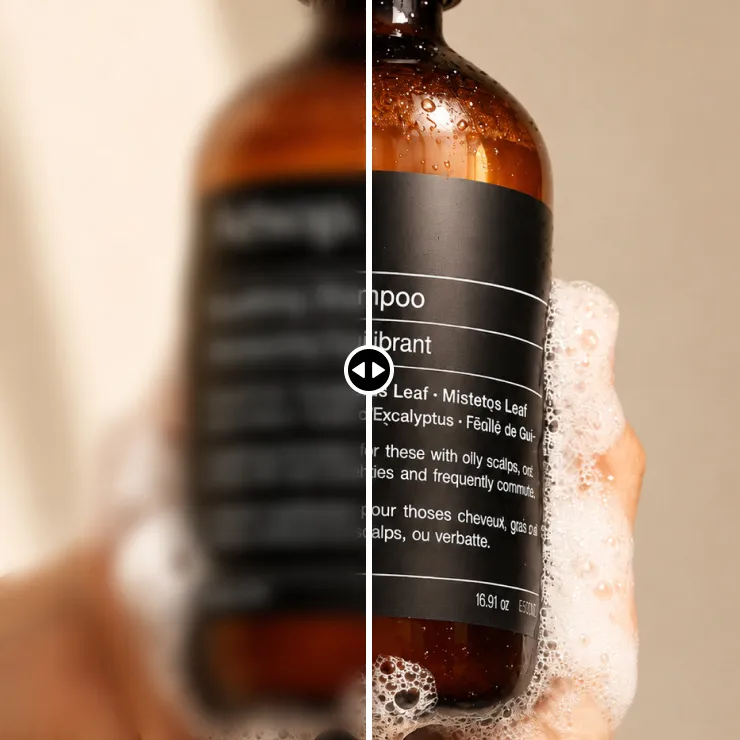
Text Sharpening improves blurry text, table lines, and chart details caused by compression, scaling, or unclear capture. The result remains an image.
How to Use
Text Sharpening Steps
- Upload a text, table, or chart image.
- Use Text and Charts mode by default.
- Switch modes when text or graphics are not the main subject.
- Click Enhance Image and review text, table, and line details.
- Save or export as JPG, PNG, BMP, or WebP.
Use Cases
Images you can sharpen
Chat screenshots
Improve text after compression or scaling.
Scans and photographed documents
Make document text, layout, and table lines easier to read.
Tables and data charts
Improve cells, axes, data labels, and legends.
Flowcharts and instructions
Enhance small text, borders, and connecting lines.
Parameters
Text Sharpening Parameters
Default mode: Text and Charts for text, tables, flowcharts, and data charts.
Recommendation: upload a complete source image without excessive cropping.
Mode switching: use Portrait, Product, or General for other subjects.
Import: PNG, JPG, JPEG, HEIC, SVG, GIF, and WEBP.
GIF files use the first frame and export as still images.
Export: JPG, PNG, BMP, and WebP.
FAQ
Text Sharpening FAQ
Can blurry text be fully restored?
The tool improves text edges and lines, but missing source details cannot be fully guaranteed.
Can it convert an image into editable text?
The output remains an image. Use an OCR tool when editable text is needed.
Which mode suits a table screenshot?
Use Text and Charts mode for tables, data charts, flowcharts, and scanned text.
Does it support HEIC and SVG?
Yes. HEIC, SVG, PNG, JPG, JPEG, GIF, and WEBP can be imported.
Which formats can be exported?
Export JPG, PNG, BMP, or WebP. GIF files use the first frame.