 Image Studio
Log in to unlock more benefits


Image Resize
Upscale images with AI and resize them at 2x, 4x, 8x, or to custom dimensions
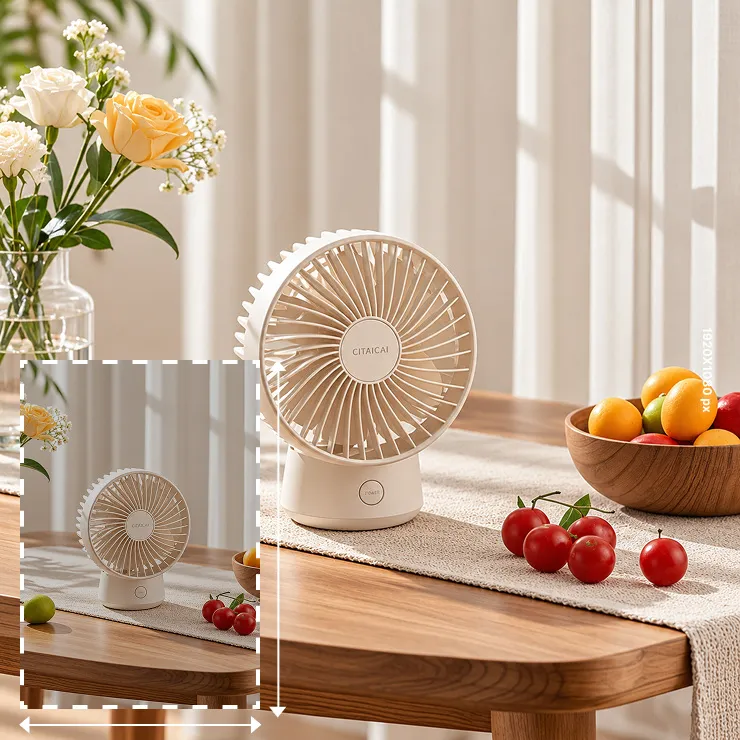
Drag or paste an image file here, or click the button above
Upload an image to choose an upscaling ratio, a platform preset, or custom dimensions.
Features
Upscale images with AI and adjust output size
Image Resize handles enlargement, reduction, and target-size adjustments. When the target is larger than the original, AI upscaling improves the appearance of details; smaller images use high-quality local resizing.
Choose 2x, 4x, or 8x scaling, enter target dimensions, or select a common preset. Results aim to preserve the original subject and aspect ratio.
How to use
How to resize an image
- Upload an image to enlarge, reduce, or resize.
- Choose 2x, 4x, 8x scaling or a platform-size preset.
- Enter a target width and height when needed; the aspect ratio is locked by default.
- For different aspect ratios, choose to keep the whole image or crop to fill the canvas.
- Select Resize, preview the result, then save or export it.
Use cases
What images can be resized?
Low-resolution images
Upscale smaller images before using them in web or content projects.
Platform images
Create images in common sizes for social posts and covers.
Wallpapers and video covers
Use presets or custom dimensions for wallpapers and video covers.
Product images and avatars
Choose a preset and decide whether to preserve the complete image or crop it to fill.
Settings
Image Resize settings
Scale: Choose 2X, 4X, or 8X for quick enlargement.
Custom size: Set a target width and height from 48×48px to 6000×6000px.
Aspect ratio: It is locked by default and can be unlocked for separate dimensions.
Presets: Common presets are available for posts, covers, wallpapers, avatars, and ID photos.
Fit mode: Keep the full image or crop to fill the target canvas.
Transparent background: Available when keeping the full image.
AI upscaling: Used when the target is larger than the original image.
Import formats: PNG, JPG, JPEG, HEIC, SVG, GIF, and WEBP; GIF uses the first frame only.
Export formats: JPG, PNG, BMP, and WebP.
FAQ
Image Resize FAQ
Will an enlarged image stay clear?
AI upscaling aims to improve enlarged-image details. Results depend on the original image and its content.
How do I choose 2x, 4x, or 8x?
Use 2X for a modest increase and 4X or 8X when a larger output is needed.
Can I enter a custom width and height?
Yes. The aspect ratio is locked by default and can be unlocked when needed.
Will resizing crop my image?
Matching aspect ratios do not crop. For different ratios, choose to keep the whole image or crop to fill.
Are platform image sizes supported?
Common platform presets are available, and custom dimensions can also be entered.
Does it support HEIC, SVG, and GIF?
Yes. GIF files use only the first frame and export as a static image.
Which export formats are available?
JPG, PNG, BMP, and WebP are available.